01
A person, not just a face
A reference can guide face, hair and clothing together. Supply the intended wardrobe when it matters; a close-up headshot cannot define every unseen detail.
Video character replacement · H3 Max
Keep a take you like. Upload your video and photos of the new cast, then replace the people while retaining the source performance, camera, cuts and soundtrack.
Generate RecastMP4 · 5–15 seconds · up to 40 MB. Trim longer footage first.
1–4 photos · one per new person · JPG, PNG or WebP · up to 10 MB each. Photo order maps to people from left to right.
0/2000
— credits
Charged per started second of source video. Reference photos are included. Failed jobs return the charged credits automatically.
MiniMax H3 Recast model example. This footage was not generated through this website.
Watch a character replacement before you start. Your own result replaces this example when generation finishes.
Source gestures, timing and camera are the starting point.
One reference photo per person, with up to four people.
Check face, wardrobe, hands and props before sharing.
Model example
The same red room and hand-to-neck gesture, with a different person and wardrobe. Compare the full clips, then inspect a matching moment.
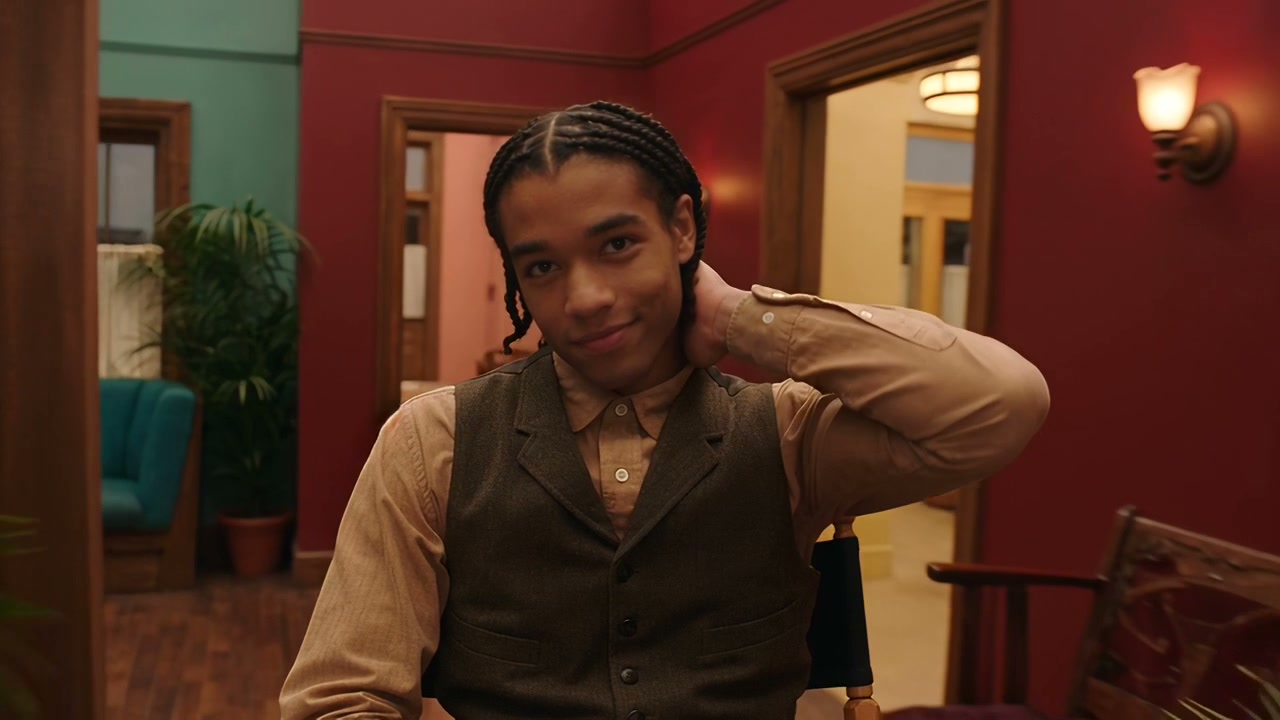

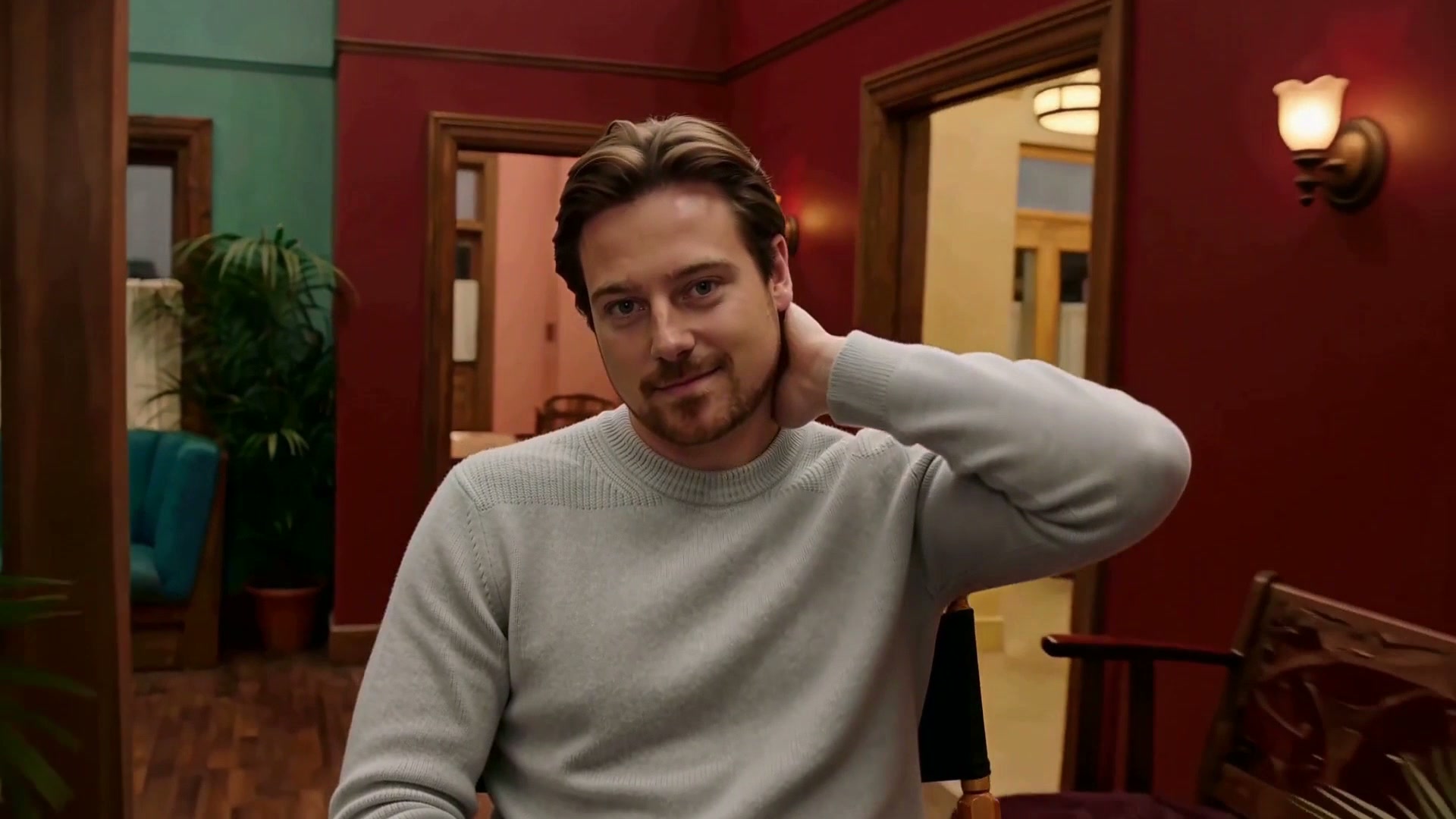
Public model demonstration, not a result generated through this website. Results vary with the source and reference photos.
MiniMax H3 Recast works from a video you already like. Keep instructions focused on the replacement and review what survives.
01
A reference can guide face, hair and clothing together. Supply the intended wardrobe when it matters; a close-up headshot cannot define every unseen detail.
02
Gestures, blocking and the camera come from the source video. Choose a performance worth keeping rather than asking the replacement to repair a weak shot.
03
Use a clear photo for each person and put them in mapping order. For a two-person shot, describe each source person by location or clothing in the optional instruction.
Study the replacement person and the surrounding scene together. These are model demonstrations, not guarantees for a new upload.
Public model demonstration, not a result generated through this website. Results vary with the source and reference photos.
Compare a different character appearance while keeping the take for a storyboard or pitch.
Try an approved person or mascot reference in footage you own, then review clothing and scene fit.
Keep a compact action beat while trying a new cast. Inspect continuity at every cut.
Adapt a short, rights-cleared performance without rebuilding the shot from a text prompt.
The source defines the performance. The photos define the new cast. Give each input one clear job.
A 5–15 second MP4 with a visible subject, readable motion and the framing you want to keep.
Clear, well-lit portraits with useful hair, angle and wardrobe information; one per replacement person.
Match photo order to people from left to right. Explain ambiguous positions with concise instructions.
Recast retains the source soundtrack. The new-looking person can still have the original voice.
Clothing, fingers, glasses and nearby props may shift. Inspect these details rather than assuming a face-only edit.
People crossing, tiny faces and long occlusions can complicate identity. Start with a clear, short shot.
For a new scene, voice replacement or a background redesign, choose a workflow designed for that task.
Use a short MP4 with clearly visible people. Cut it to 5–15 seconds. Avoid long occlusions, tiny faces and rapid motion blur.
Upload one clear photo for each replacement person. Include the intended clothing when wardrobe matters. Keep photos in left-to-right source order.
Use the optional instruction to clarify who becomes whom. Choose 768p or 1080p and check the total before submitting.
Review identity after cuts, hands, clothing, props and audio. Download the video when the job finishes.
MiniMax H3 Recast starts from finished footage. Reference to Video starts from visual references and generates a new take. Choose the workflow that fits what you need to keep.
Read the MiniMax H3 Recast guide and alternatives
To create a new scene from a photo, try MiniMax H3 Max.
For a new multi-reference scene, plan it with the reference-to-video prompt builder.
Study character and shot direction in the prompt library.
A video-to-video character replacement model powered by H3 Max. It uses a source video and person photos to recast people while preserving source motion, camera, cuts and audio.
Upload an MP4 clip from 5 to 15 seconds, up to 40 MB. Trim longer footage first so you can review each short result.
Yes. Supply 1–4 photos, one per new person. By default, photos map to the main people from left to right. Use the optional prompt to clarify ambiguous mapping.
It keeps the source soundtrack, including existing voices. It does not offer voice replacement or a new audio-generation control here.
The total uses source duration and output resolution. A 5-second clip costs 139 credits at 768p or 208 credits at 1080p. Fractional durations round up to whole seconds for credits. Photos are included.
The charged credits are returned automatically for failed or cancelled jobs. Changing your mind about a successfully generated result does not count as a failed job.
Review the output before use. Clothing, hands, small props, blending and identities can vary. MiniMax H3 Recast is not a guarantee of frame-perfect preservation.
Start with one clear person and a short source clip. Review the credit total, generate, and check the complete result.
Generate Recast